Crossfade Tool
A Studio Pro script for creating crossfades between selected audio events.
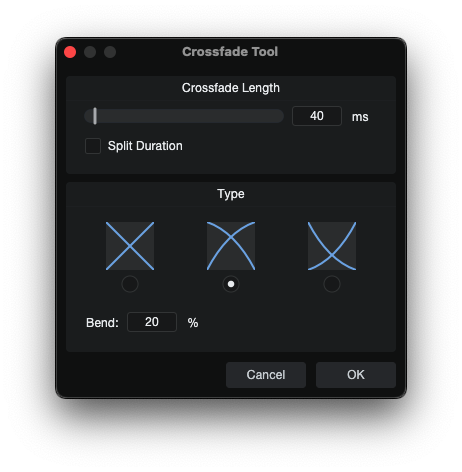
Click for details
The Crossfade Tool package in this repository is a working example demonstrating:
AudioEditEditTaskregistration for an audio-event-only workflowskin.xmlwithResources,Image,ImageView,Space,Slider,ValueBox,CheckBox, andRadioButton- named image resources displayed through
ImageView - grouped
RadioButtoncontrols used as a visual Type selector - display-vs-storage translation for millisecond UI values and second-based API values
Host.GUI.Commands.interpretCommand("Audio", "Create Crossfades", false, attrs)withLength,Type, andBendAudioFunctions.createCrossFades(events, fadeLengthSeconds)for the actual edit operation
Source Code Files:
classfactory.xmlmetainfo.xmlmain.jsskin/skin.xmlskin/images/linear.pngskin/images/logarithmic.pngskin/images/exponential.png
Key features:
- Supports Linear, Logarithmic, and Exponential crossfade types
- Supports Bend as a user-facing percentage value
- Supports optional split-duration behavior so the entered duration can be divided evenly between both clips
- Demonstrates how command arguments and edit functions can be combined in one script
Overview
The Crossfade Tool creates crossfades between selected audio events with control over duration, crossfade type, and bend amount.
User Interface Controls
Crossfade Length
- Range: 0 ms to 1000 ms
- Step behavior: Slider uses millisecond values and displays the value beside the slider.
- Description: Sets the crossfade duration sent to the crossfade operation.
Split Duration
- Unchecked: The entered crossfade length applies the full amount to each of the adjacent events.
- Checked: The entered crossfade length is divided by two between each of the adjacent events.
- Description: Splits the entered duration evenly between the adjacent, selected clips.
Type
- Linear: Straight crossfade curve.
- Logarithmic: Logarithmic crossfade curve.
- Exponential: Exponential crossfade curve.
- Description: Selects the crossfade curve type. The UI uses image previews and radio buttons for the three supported types.
Bend
- Range: 0% to 100%
- Description: Sets the bend intensity for Logarithmic and Exponential crossfade types.
Value Calculations
Length Conversion
The UI displays length in milliseconds, but the audio function expects seconds.
lengthSeconds = fadeLengthMs / 1000;
| UI value | API value |
|---|---|
| 5 ms | 0.005 |
| 20 ms | 0.02 |
| 100 ms | 0.1 |
| 1000 ms | 1.0 |
Split Duration Calculation
When Split Duration is enabled, the entered length is halved before the crossfade is applied.
if (splitDuration) {
  lengthSeconds = lengthSeconds / 2;
}
Example:
- Crossfade Length: 40 ms
- Split Duration: checked
- Applied length: 20 ms
Bend Mapping
The UI exposes Bend as a 0% to 100% value. The script maps that display value to the Bend argument expected by the crossfade command.
raw = bendPercent / 100;
| Type | Bend mapping |
|---|---|
| Linear | raw |
| Logarithmic | 1 - raw |
| Exponential | raw |
This keeps the user-facing Bend control consistent so 0% is the gentlest bend and 100% is the strongest bend.
Scripting API Notes
The script uses both the command path and the audio edit function path:
var attrs = Host.Attributes([
  "Length", String(lengthSeconds),
  "Type", typeName,
  "Bend", String(bendValue)
]);

Host.GUI.Commands.interpretCommand("Audio", "Create Crossfades", false, attrs);
var audioFunctions = root.createFunctions("AudioFunctions");
audioFunctions.createCrossFades(events, lengthSeconds);
The command path accepts Length, Type, and Bend arguments. The AudioFunctions.createCrossFades(events, lengthSeconds) call performs the edit on the selected audio events.
Usage
- Select at least two audio events.
- Run the Crossfade Tool script from the Audio menu.
- Set the Crossfade Length.
- Enable Split Duration if you want the entered length divided evenly between the selected clips.
- Choose Linear, Logarithmic, or Exponential.
- Set the Bend amount.
- Click OK to apply.
- Use Undo (Cmd+Z / Ctrl+Z) to revert if needed.
Tips
- If the dialog does not open, make sure at least one audio event is selected. The tool still requires at least two audio events before applying the crossfade.
Development Note: This script and its documentation were developed with the assistance of agentic coding tools.